Launching3 min read
Preparing your art files
Clean, consistent files make a KURV collection build smoothly. How to set up layer folders and finished-art folders, sizes, transparency and naming, with a checklist.
KURV teamAlso in Español, Português (Brasil)
On this page13 sections
Most problems in a collection launch start with files: a layer that’s a few pixels off, a background that isn’t transparent where it should be, a trait named “final_v3_REAL”. Spending an hour on file prep saves a lot of grief. Here’s how to set up files for each way in on KURV.
Two ways to bring art
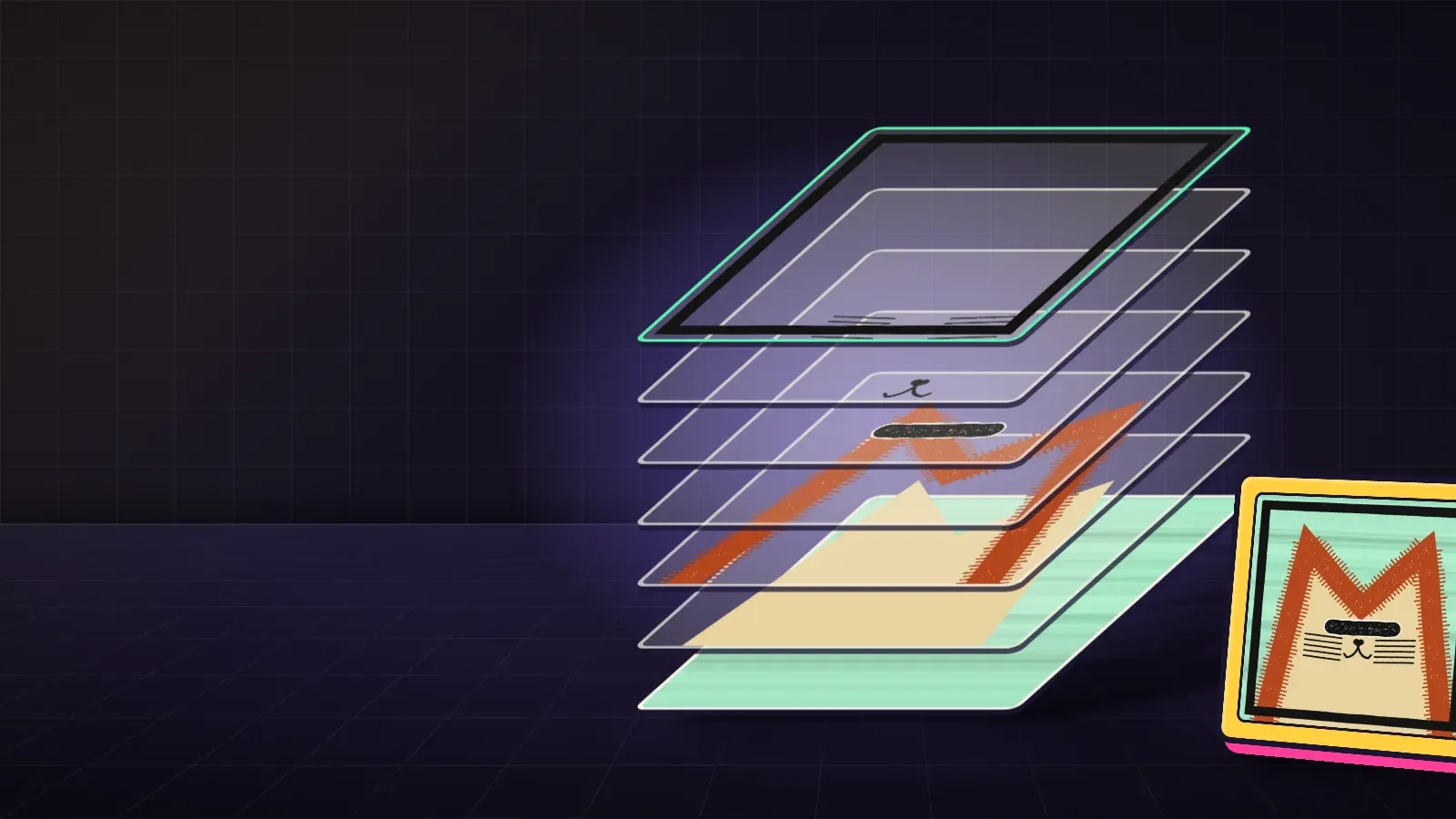
- Layers: a folder for each layer, each with its trait images. KURV builds every piece by stacking one trait from each layer.
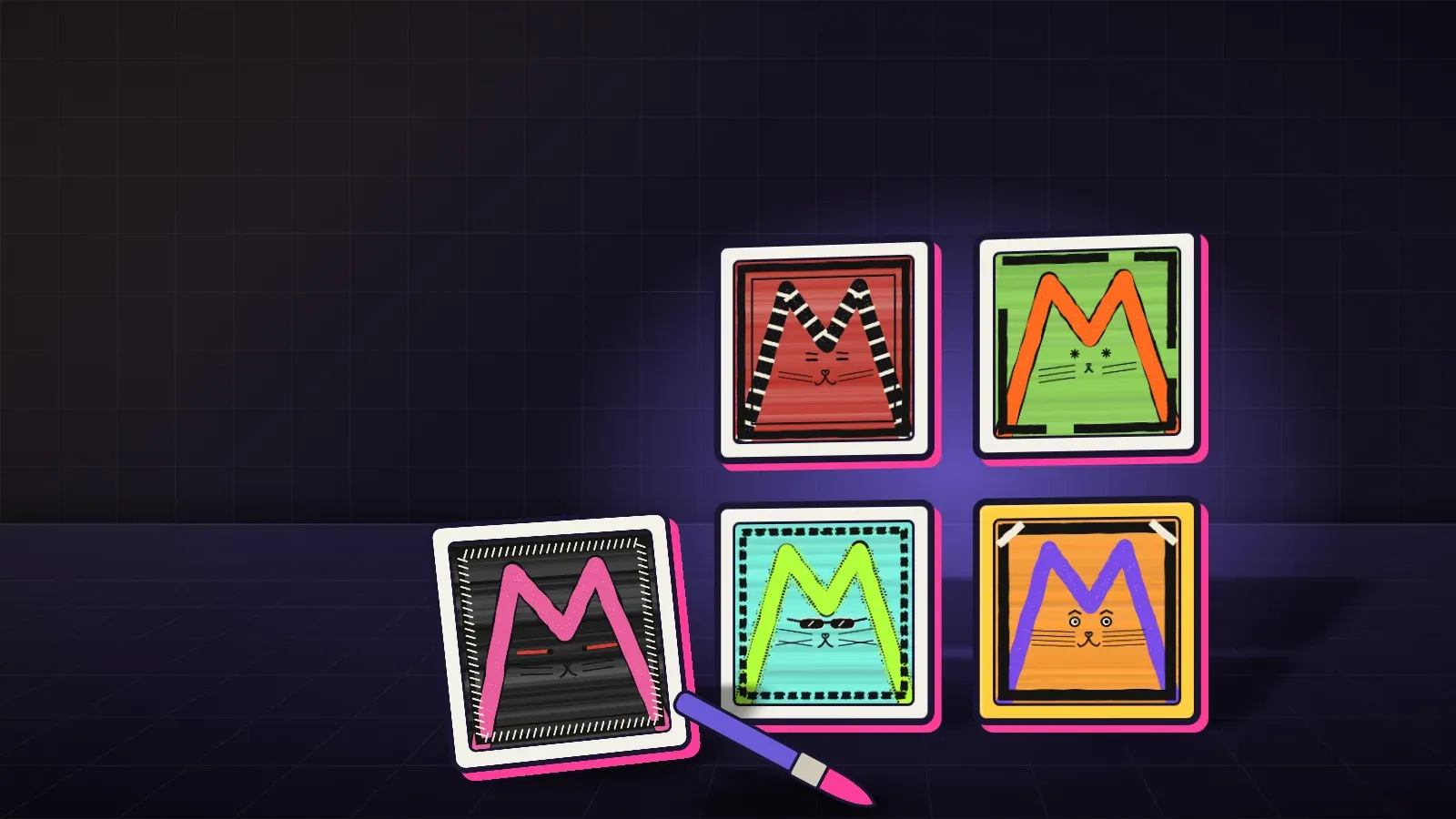
- Finished art: an art folder with one image per piece, plus a metadata.json describing each piece.
(The third way, bringing a collection already on Base, uses art that’s already published.)
On a phone, you can bring files as a ZIP.
Setting up layer files
- Same canvas size for every image. Every trait in every layer must be exactly the same width and height.
- Draw in place. Each trait sits where it belongs on the full canvas, not cropped.
- Transparent everywhere except the art. Only the background layer should be fully filled.
- One folder per layer, numbered for paint order and named for the layer, like
01_Background. - Clear trait names. “Blue Hat”, not “hat2_final”.
- Order matters. Layers stack back to front by that number, so plan which comes first.
Max Cat, the KURV mascot collection, uses seven layers, back to front: Background, Fur, Head, Eyes, Nose, Whiskers, Frame. Traits, layers and rarity 101 walks through it.
Setting up finished art
- One image per piece, all the same size and format.
- Name files simply, usually by number, so they match the metadata.
- Write metadata.json with a name and traits for each piece. Metadata explained covers the format.
- Check that counts match: as many images as entries in the metadata.
Size and format
- Pick one size and stick to it. Square images display most consistently in grids.
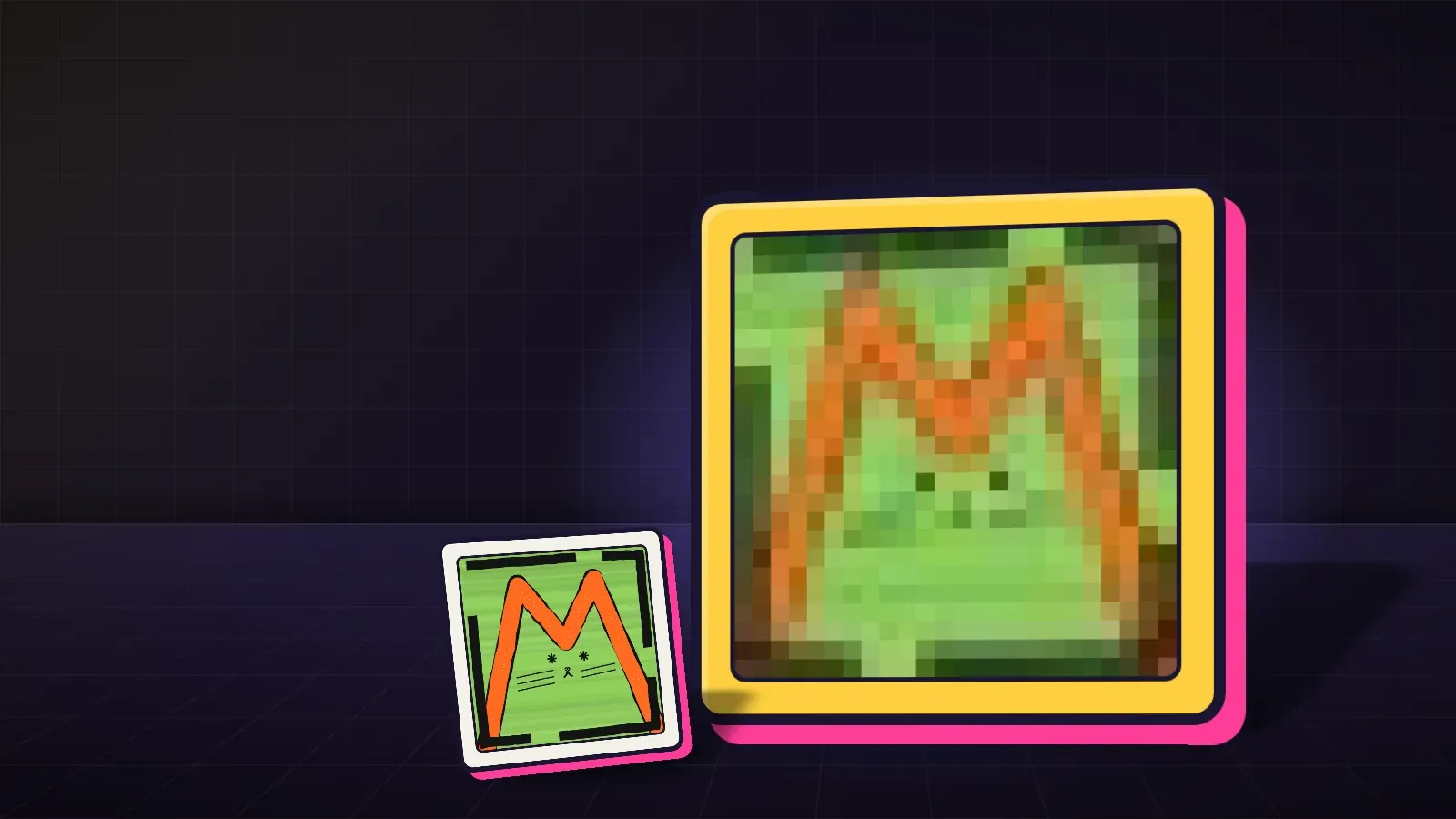
- Pixel art: draw at the true small size, then export larger with nearest-neighbor scaling so edges stay crisp. What is pixel art? A guide for KURV creators explains.
- Keep files reasonable. Huge files slow down browsing.
A worked example
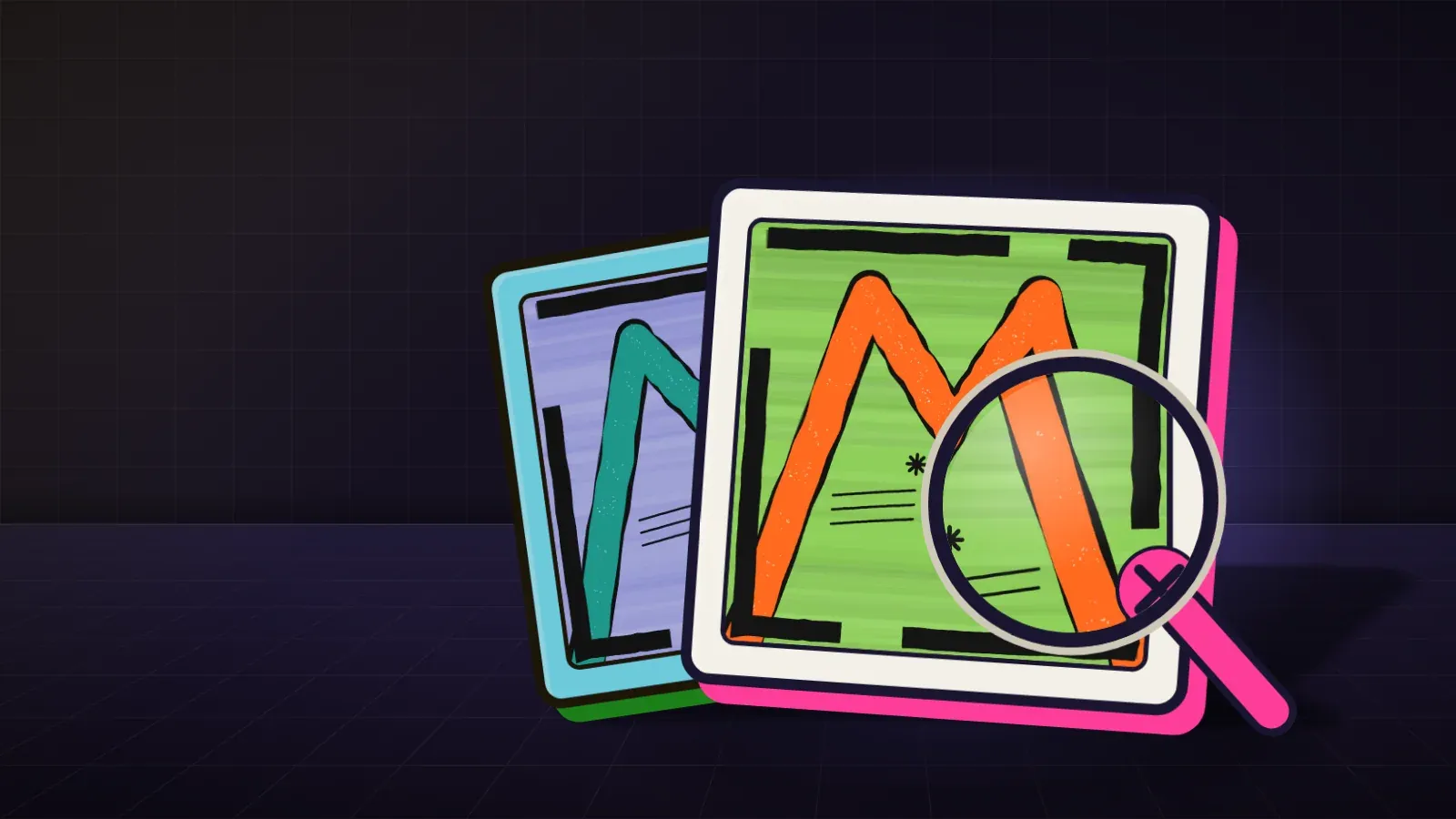
Leo’s first test build looked wrong: every cat’s eyes floated slightly to the left. He opened the eye layer and found three of the twelve eye traits had been exported on a canvas a few pixels narrower than the rest. He re-exported them at the full canvas size and the problem was gone. Ten minutes of checking would have caught it before the build.
A pre-flight checklist
- Every image the same size?
- Transparency correct on every non-background layer?
- Trait names readable by a stranger?
- No leftover test files in folders?
- Finished art: image count matches metadata entries?
- Built in Studio and looked at a good sample of pieces?
Naming that survives a stranger
Trait names become what collectors see on every piece, in filters, and on the market. A good test: hand your folder list to a friend who’s never seen the art. If they can’t tell what “acc_03” is, rename it. Prefer short, descriptive names (“Gold Earring”, “Rainy Window”) and keep one naming style across every layer.
Version control for artists
You don’t need software for this. Keep three folders: working (everything in progress), final (exactly what you’ll upload, nothing else) and backup (a copy of final, stored somewhere else). Only ever build from final. Most stray-file accidents come from building out of a working folder.
Checking a build, step by step
- Build the collection in Studio.
- Scroll through a large sample of pieces at full size, not just thumbnails.
- Look for floating parts, missing transparency and clashing traits.
- Fix the source files, rebuild, check again.
Common mistakes
- Cropped traits that end up in the wrong spot.
- White backgrounds on layers that should be transparent.
- Mixed sizes across layers.
- Messy names that show up as trait names collectors see.
- Blurry pixel art from smooth scaling.
Before you publish
Publishing sends your art to IPFS, with a fingerprint of the build. Freeze makes the link to your files permanent, not the files themselves. So keep your own backup of every final file.
FAQ
What format should I use? PNG is a safe choice for layered art with transparency.
Can I build from my phone? Yes. Bring files as a ZIP.
Can I fix a file after publishing? Treat publishing as final. Fix everything in Studio first.
Should I keep my original files? Yes, always keep your own backup.