Launching4 min read
What is pixel art? A guide for KURV creators
Pixel art places every square on purpose. Why it suits layered collections, how to export traits for KURV, and the scaling mistakes that blur them.
KURV teamAlso in Español, Português (Brasil)
On this page12 sections
Pixel art is one of the most common styles in NFT collections, and one of the easiest to get subtly wrong at export. Here’s what defines it, why it works so well for layered collections on KURV, and how to prepare it so every piece stays crisp.
The style
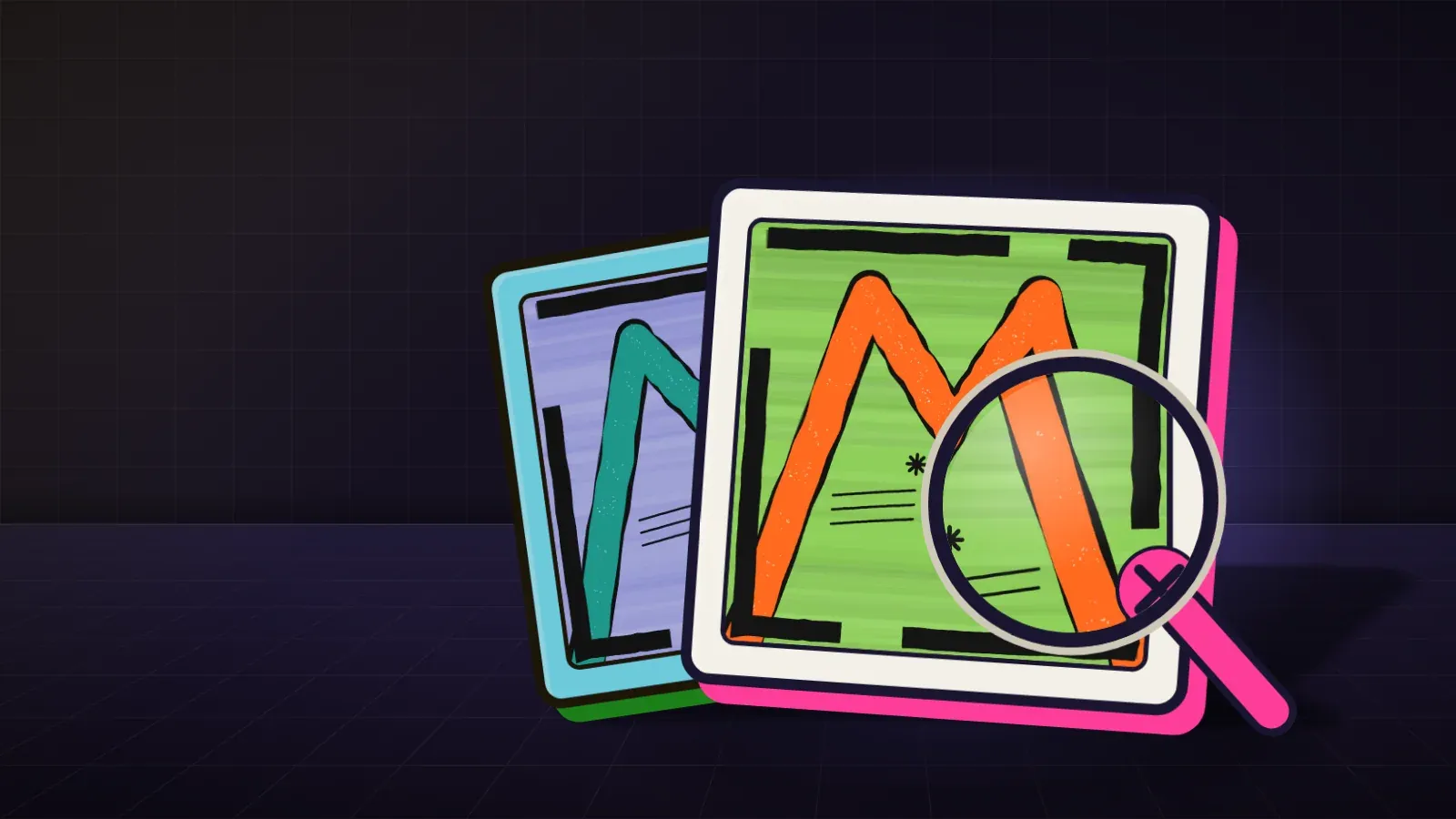
Pixel art is digital art where every square (pixel) is visible and placed on purpose. Three things define it:
- Hard edges. No soft brushes, no blur, no smooth gradients.
- A small palette. Often a handful of colors, chosen deliberately.
- A small canvas. The art is made at a tiny size, like 32 by 32 or 64 by 64, then shown larger.
It started with old game hardware, which could only show a few colors on a small grid. It stuck around because it reads clearly when small and has a charm all its own.
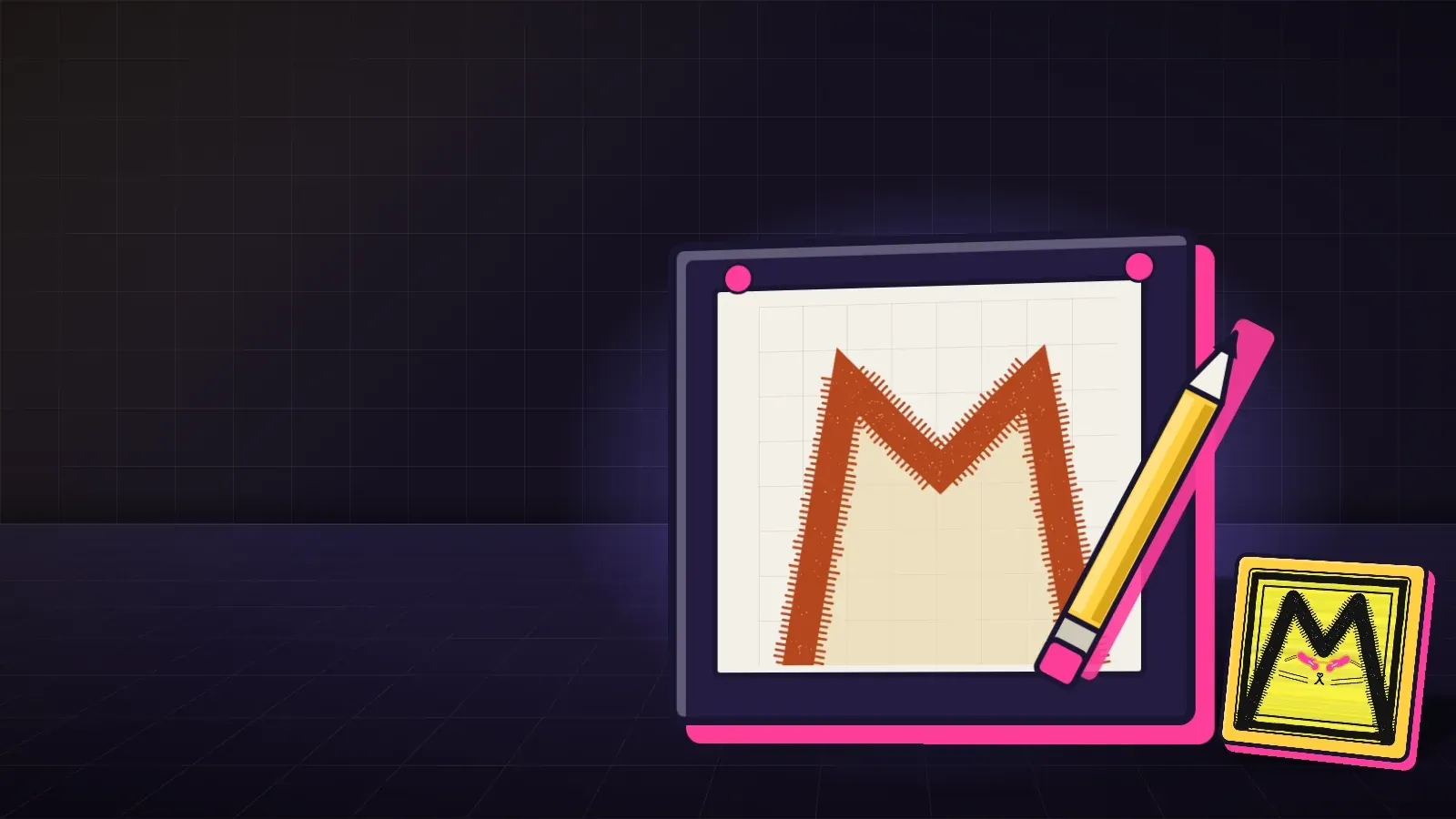
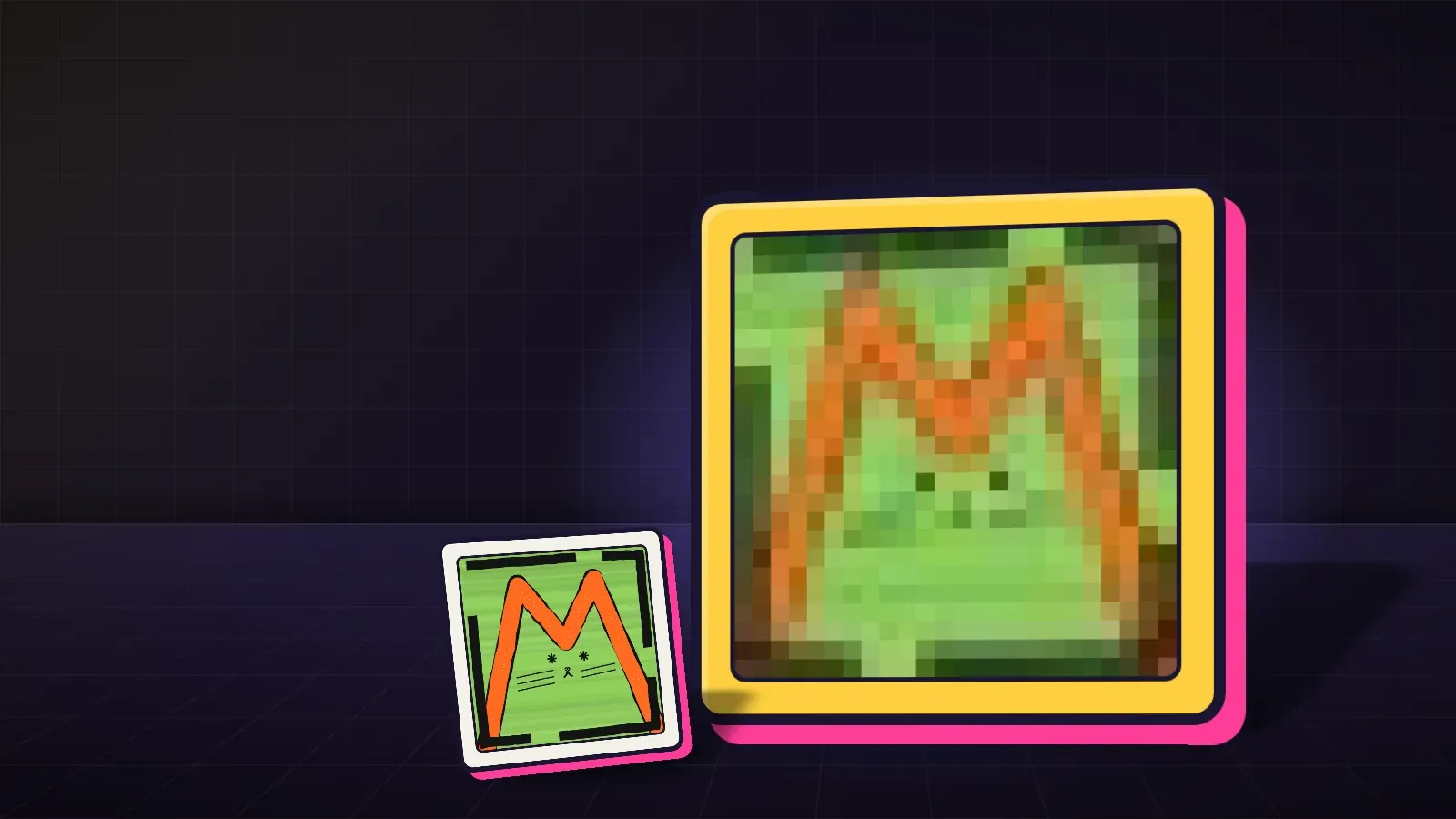
Max Cat himself is hand-drawn, not pixel art. The pixel version above is just a comparison.
Why it suits collections
- Simple shapes split into layers easily. A pixel hat sits on a pixel head without fuss.
- Traits read clearly at thumbnail size, which is how people first see pieces on Explore.
- A fixed canvas makes alignment exact. On a 32-pixel grid, an eye is either in the right square or it isn’t.
Drawing pixel traits, step by step
- Choose a canvas size and never change it. Every layer uses it.
- Pick a palette before you start, and keep it small.
- Draw the base character first, in the pose every piece will share.
- Draw each trait on its own layer, in place on the full canvas.
- Keep transparency clean: no stray semi-transparent pixels around edges.
- Check every trait against the base at actual size and zoomed in.
Exporting for KURV, step by step
- Export PNG with transparency.
- Scale up with nearest-neighbor, which copies each pixel into a bigger square.
- Scale in whole steps, for example 32x, never 7.5x, and land at or above KURV’s recommended 1000 × 1000 canvas (a 32-pixel piece at 32x is 1,024).
- Scale every layer the same amount. Mixed scales break alignment.
- Build in Studio and look at pieces full size.
Why scaling matters so much
Most image tools scale with smoothing by default, which blends neighboring pixels into soft, blurry edges. That’s great for photos and terrible for pixel art. If a scale isn’t a whole number, some pixels become two squares wide and some three, making lines look uneven. Both problems show up instantly on a big screen.
A worked example
Leo draws a pixel frog collection on a 32-pixel canvas with an eight-color palette. He exports the first batch at 1000 pixels wide, which is 31.25x, with default smoothing. In Studio every frog looks soft and lines wobble. He re-exports at 1,024 pixels (exactly 32x, and above KURV’s recommended 1000 × 1000 minimum) with nearest-neighbor. Every edge is sharp and every line is even.
Palette tips
- Limit colors per trait, so traits feel like one family.
- Share shadow colors across traits.
- Check contrast between the character and every background.
- Avoid near-identical colors that look like mistakes when side by side.
Animation in pixel art
Pixel art animates well because each frame is small. A blinking eye might be two or three frames; a bobbing head, four. If you plan to share animated previews of your collection, keep the same palette and canvas for every frame, and export animations with the same nearest-neighbor scaling as your still pieces. A short loop of traits swapping on one character is an easy, eye-catching post before launch.
Dithering and texture
Pixel artists use patterns of two alternating colors (dithering) to suggest shading without adding colors. Used lightly, it adds texture. Used everywhere, it looks noisy at thumbnail size. On layered collections, keep dithering consistent across traits so a dithered hat doesn’t clash with a flat-shaded head.
Common mistakes
- Smooth scaling that blurs edges.
- Fractional scales that make lines uneven.
- Different canvas sizes across layers.
- Stray semi-transparent pixels that leave halos.
- Too many colors, which loses the pixel look.
FAQ
What canvas size should I use? Pick what fits your detail. Small canvases like 32 or 64 pixels are common. Use the same one everywhere.
Do I upload the tiny version or the big one? Export a larger version, scaled in whole steps with nearest-neighbor.
Is Max Cat pixel art? No. He’s hand-drawn and built from seven layers.
Can pixel art be finished art instead of layers? Yes. Bring an art folder plus metadata.json.